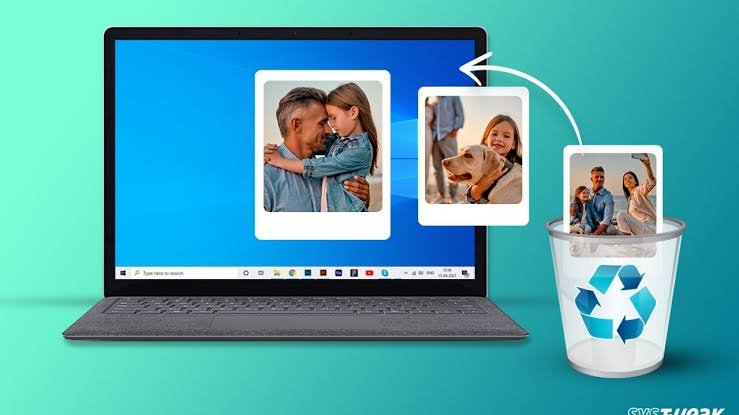
Losing photos from your Windows PC can be stressful, especially if they capture irreplaceable memories. Whether your photos were deleted accidentally, formatted, or lost due to a virus or malware attack, such situations can quickly become stressful. Fortunately, there are several photo recovery methods available online that you can try to recover deleted photos from PC with ease.
In this 2026 guide, we’ll explore different methods on how to recover lost or deleted photos from a Windows PC. Let’s get started!
Common Reasons for Photo Loss on Windows PC
Understanding the exact reasons for your photo loss can help you determine adequate photo recovery workarounds. Here are some common causes:
- Accidental Deletion: You may have unintentionally deleted folders, specifically by using the Shift + Delete keys or emptying the Recycle Bin, which leads to permanent deletion.
- Formatting: When you format any storage device, such as an HDD, SSD, USB drive, or SD card, it can erase all stored photos and make them inaccessible.
- Corrupted Storage Devices: If your storage drive is corrupted or has bad sectors (which generally happen due to continuous usage), it can lead to missing or unreadable photos.
- Virus or Malware Attacks: Malicious programs like viruses or malware can delete, encrypt, or hide image files stored on your computer.
- Windows Update or System Crash: Failed Windows updates, BSOD errors, or sudden shutdowns can also be one of the main reasons for missing photos in libraries.
- Partition Loss: Deleted or inaccessible partitions can make entire photo collections disappear instantly.
Immediate Actions for Quick Photo Recovery
Once you find a photo deleted from your Windows PC, it’s important to immediately act with adequate photo recovery workarounds. The chances of successful recovery depend heavily on what you do after the loss occurs. For smooth recovery:
- Avoid Using the Drive: Stop saving or transferring new files from the affected drive. This can overwrite deleted photos and make recovery complex.
- Don’t Install Recovery Software on the Same Drive: Installing the photo recovery tool on the same drive or partition can overwrite deleted data, making the recovery process more difficult or even impossible.
- Check Backup Locations: Before you proceed with advanced photo recovery methods, it’s important to check the previously created backups. Verify whether your photos exist in: Recycle Bin, OneDrive, Google Photos, or your device’s in-built backup utility.
- Disconnect External Devices Safely: If the lost photos were stored on an SD card or USB drive, disconnect it properly and avoid repeated usage.
How do I Recover Photos Lost from Windows PC?
Now that you’re familiar with the reasons for your photo loss and quick pre-requisites, it’s time to apply proper photo recovery methods. Here are some easy DIY methods that can help you recover lost or deleted photos from Windows PC with ease:
Method 01: Recover Photos from the Recycle Bin
Before you apply any advanced photo recovery method, it’s important to check the Recycle Bin folder. Every deleted file on your Windows PC goes to this folder and remains there until permanently erased. Follow the below steps to get your photos back from the Recycle Bin:
- Launch the Recycle Bin folder on your PC.
- Locate and right-click on the deleted photos you want to restore.
- Select Restore.

This will save the selected photos to their original folder location.
Method 02: Recover Using File History Backups
If you’re good at maintaining backups of your lost photos, you can check these backups. Windows OS offers a built-in File History backup utility, which, when synced on your PC, automatically creates backup of your files and allows you to restore them. All you have to do is:
- Open the folder where your deleted photos were earlier stored.
- Right-click anywhere inside the folder, then select Restore previous versions.

- Choose the backup version that you need to restore.
- Click Restore to save the selected backup to your device.

Note: This method works only if File History was enabled before the data loss.
Method 03: Recover Photos from OneDrive
Along with the built-in backup utility, you can use cloud backups such as OneDrive, Google Photos, etc., to create backups and restore your deleted photos. If your Windows PC is synced to OneDrive, follow the steps below to restore deleted photos:
- Open OneDrive and sign in with your synced account.
- Now, click on the Recycle Bin folder inside OneDrive.
- Browse through synced folders such as Pictures, Camera, Roll Desktop, etc.
- Once found, restore the selected photos.
Method 04: Recover Photos Using Professional Photo Recovery Software
Instances may happen when the above DIY methods might fail to restore your lost or deleted photos from Windows PC. In such cases, you can use third-party photo recovery software such as Stellar Photo Recovery to get your deleted photos back. Tools like Stellar Photo Recovery are especially designed to restore your photos deleted from any internal or external storage media, including hard drives, SSDs, SD cards, etc. You can use this tool to recover deleted photos of various file types, such as JPG, PNG, RAW, TIFF, HEIC, and many more.
The Stellar Photo Recovery Software allows you to restore deleted photos in three simple steps: Select, Scan, and Recover. Not only photos, but you can also use this amazing photo recovery software to restore deleted audio and video files of several file formats. The preview functionality lets you preview the recoverable files before saving them on your device.
Steps to recover lost or deleted photos from Windows PC using Stellar Photo Recovery:
Step 1: Download and install the Stellar Photo Recovery software on your Windows PC. Launch the software and from the homepage, select Photos and click Next.

Step 2: Now, choose the storage device where your deleted photos were earlier stored and click Scan to initiate the scanning process.

Step 3: Once the scan is complete, preview the recoverable files and select the photos you need to restore. Click Recover to save selected photos back to your PC.

Can Permanently Deleted Photos Be Recovered?
If your photos are permanently deleted but still not overwritten by any new file, recovery is possible. When a file is deleted, Windows usually removes the file reference instead of erasing the actual data immediately. Recovery software scans unused disk sectors to reconstruct those files.
However, photo recovery depends on:
- Time elapsed after deletion
- Disk usage after loss
- SSD TRIM functionality
- Extent of corruption
Conclusion
If you ever encounter photo loss issues on your Windows PC, go with the aforementioned photo recovery methods one by one to get your photos back. The most important step is to stop using the affected drive immediately and attempt recovery using appropriate methods such as the Recycle Bin, File History, OneDrive backups, Windows File Recovery, or professional recovery software. For better and hassle-free recovery, you can try professional photo recovery software such as Stellar Photo Recovery.
Moreover, you can implement preventive measures such as regular backups and safe storage practices to avoid permanent photo loss issues in the future.
FAQs
Can I Recover Photos After Emptying the Recycle Bin?
Yes, if your photos are not present in the Recycle Bin folder, you can try third-party photo recovery software to restore them.
Is Free Photo Recovery Software Safe?
Most reputable tools, such as Stellar Photo Recovery, are 100% safe, but it’s always advised to download the software only from the official websites.
How Long Does Photo Recovery Take?
Quick scans finish within minutes, whereas deep scans on larger drives may require several hours to complete successfully.
Can viruses or malware delete photos permanently?
Malware can delete, hide, or corrupt photos, but recovery may still be possible using professional photo recovery software or backups.